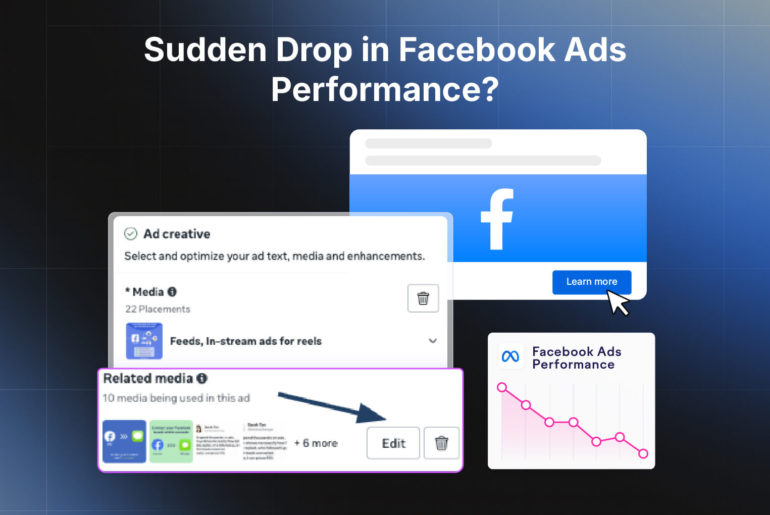
As you must have noticed, Meta is increasingly introducing AI-powered creative features under Advantage+ creative enhancements, and many of these are enabled by default.
Advantage+ Creative enhancements can automatically modify your ad copy, images, videos, layouts, CTAs, and other creative elements. If used properly, they can help boost your ad’s performance. But it requires careful oversight, especially if you’re running lead generation campaigns.
When Meta automatically changes copy, adds overlays, crops images, generates backgrounds, or pulls in irrelevant screenshots without your knowledge, your lead quality, cost per qualified lead, booking rate, or sales conversion rate can suffer.
So how to ensure these features help, not harm your ad?
This guide will explain everything you need to know about Advantage+ creative features, how to control them, and how to make the most of them.
What is Advantage+ Creative
Advantage+ Creative is a collection of AI and automation tools that can change how your ad appears across Facebook, Instagram, Reels, Stories, Feed, Marketplace, and other placements. In theory these are Meta Ad’s AI features supposed to adjust your ad elements to fit how and where they appear.
Depending on your account, campaign objective, ad format, placement, and region, you may see different features. Here’s a quick overview of common Advantage Creative+ features:
| Feature | What it does | Possible risks |
| Text improvements | Rewrites, rearranges, highlights, or extracts parts of your copy | Offer, promise, CTA, tone, or qualification language can change |
| Add overlays / Ad overlays | Adds text or graphics over your creative | Can make ads look cluttered or misleading |
| Visual touch-ups | Adjusts cropping, layout, brightness, colour, or presentation | Can break brand consistency or hide important text |
| Adjust brightness & contrast | Changes brightness, contrast, colour, or sharpness | Can distort brand colours or edited visuals |
| Image expansion | Expands or fills an image to fit placements | Odd backgrounds or unnatural visuals |
| Video expansion | Expands or adjusts video to fit placements | Can create awkward framing or crop important elements |
| Background generation | Generates new backgrounds behind products or subjects | May create irrelevant, inaccurate, or low-quality visuals |
| Image animation | Adds motion to static images | Can make lead ads look gimmicky |
| 3D animation | Adds 3D-style motion or depth | Can look artificial or distracting |
| Music | Adds music to eligible creative | Can feel inappropriate for some ads |
| Video filter / video enhancements | Adjusts video colour, sharpness, or presentation | Alters intended look or tone |
| Website Highlights | Pulls images, headlines, and descriptions from your landing page | Can surface outdated, off-brand, or irrelevant copy/images |
| Text extraction | Pulls text from your creative and uses it elsewhere | May surface the wrong sentence or claim |
| AI sticker CTA / Enhance CTA | Adds or modifies a sticker-style CTA | May affect design or core messaging |
| Relevant comments | Shows selected comments with your ad | May show outdated or less relevant social proof |
| Flexible format / Flex media | Shows creative in different formats/layouts | Can change how the ad is experienced |
| Highlight carousel card | Highlights or reorders a carousel card | May emphasise the wrong product or message |
| Profile end card | Adds a Page/profile card to the end of carousel ads | May distract from the main CTA |
| Add product tags | Adds product tags to eligible ads | Can clutter creative or tag the wrong item |
| Add catalog items / Show products | Shows catalog products with the ad | May distract from the main offer |
| Dynamic overlays / Info labels | Adds catalog info like price, sale, or shipping labels | Can show outdated or misleading catalog data |
| Dynamic description | Shows catalog or carousel descriptions dynamically | Can change message emphasis |
| Dynamic format | Shows catalog ads in carousel or collection format | Less control over format and layout |
| Dynamic media | Creates videos from catalog product images | May generate low-quality or off-brand motion |
| Site links | Adds extra landing page links under the ad | Can divert users from the main CTA |
| Store locations | Adds nearby store/location information | Irrelevant if location data is wrong or not useful |
| Add standard labels | Adds labels such as sale, price, or product info | Can clutter creative or misrepresent offer |
| Translate text | Translates ad text for different audiences | Translation may change nuance, claims, or tone |
Some of these features can make changes to your ad creatives after you’ve published your ad without your knowledge. As a result, the ad shown to users may not look exactly like the ad you approved in your creative file. If you’re running Lead Ads on Facebook, it’s highly recommended that you review all Advantage+ Creative features and assess possible outcomes before enabling or disabling them.
Are Advantage+ Creative features enabled by default?
Yes. In many ad accounts, some Advantage+ Creative enhancements are automatically enabled or preselected. If you’re running ads regularly, there’s a high possibility that many Advantage+ Creative features are automatically enabled in your ads.
Meta’s help result for text improvements suggests that Text Improvements is turned on by default. Meta’s text and best-practice page also notes that some enhancements are turned on by default.
At Privyr, we also noticed that many of our campaigns were launched with Advantage+ Creative enhancements preselected by default. Because these settings were not identified and reviewed before publishing, some ads were affected negatively.
Therefore, if you’re running lead ads, the safest operating assumption is that you should not assume your uploaded ad is the only version users will see. Always check the Advantage+ Creative section at the ad level before publishing.
Where to find Advantage+ Creative enhancements
You usually find these settings at the ad level, not the campaign or ad set level. Here’s how to locate Advantage+ Creative:
- Open Meta Ads Manager.
- Create or edit a campaign.
- Go to the Ad level.
- In Ad setup, choose your format, such as single image, video, carousel, or flexible format if available.
- Scroll to Ad creative.
- Look for Advantage+ Creative, Advantage+ Creative enhancements, Creative enhancements, or All optimisations. After opening the section, you can review each active feature.
How to disable Advantage+ Creative enhancements
If your ads are showing irrelevant text, images, or screenshots, you may want to review and disable some Advantage+ Creative features or turn off the whole thing entirely.
You can turn off Advantage+ Creative features while publishing your ads or after you’ve already published it.
(At ad level) If you’re yet to publish your ad,
- Go to Ad creative.
- Open Advantage+ Creative enhancements.
- Review the list of active enhancements.
- Toggle off the features you do not want.
- Check preview placements: Feed, Reels, Stories, Instagram, Facebook, etc.
- Publish only after confirming the final preview is acceptable.
If your ad is already live:
- Go to Ads Manager.
- Click Ads.
- Select the ad you want to edit.
- Open the ad editor.
- Go to Advantage+ Creative enhancements.
- Turn off the unwanted enhancements.
- Publish the edited ad.
You can also bulk-disable Advantage+ Creative enhancement features across multiple ads. To do so,
- Go to the Ads tab of the ad set or campaign.
- Select all ads you want to edit using the checkboxes on the left.
- Click the dropdown arrow next to the Edit button in the action bar.
- Select Creative setup from the dropdown.
- Find Advantage+ creative features you like to disable and turn them off across all selected ads.
- Review the changes and publish.
You can also opt out of Advantage+ Creative features from your Ad settings.
- Go to advertising settings on your ad manager dashboard
- Scroll down and select creative features
- Disable Advantage+ Creative features you don’t want
Keep in mind that editing a live Facebook ad will temporarily pause it since every new change goes through Meta’s review process. Once the edit is approved, the ad will automatically resume running.
If your campaign feels too important to pause, duplicate the ad and disable enhancements in the duplicate, and compare performance.
Recommended default settings for Lead Generation Ads
Advantage+ Creative enhancement is new and comes with limited control. If you’re running lead generation ads, precision, compliance, and qualification is critical to your campaign.Therefore, you may not want to see a lot of Advantage+ Creative features turned on by default as they tend to show or modify assets that can attract wrong leads. Here’s a starting point if you’re a beginner:
| Feature | Recommended default for lead gen |
| Text improvements | Off |
| Add overlays / Ad overlays | Off |
| Visual touch-ups | Optional |
| Brightness/contrast | Optional |
| Image expansion | Off unless you lack placement assets |
| Background generation | Off |
| Image animation | Off |
| 3D animation | Off |
| Music | Off |
| Video filter | Off for polished videos, optional for raw UGC |
| Website Highlights | Off |
| Text extraction | Off |
| Add catalog items | Off unless catalog is central |
| Dynamic overlays | Off unless ecommerce/product-led |
| AI sticker CTA | Off |
How to manage ad assets for better lead generation
If you want to avoid irrelevant AI-generated visuals, awkward image crops, unexpected screenshots, and unwanted text overlays, start by giving Meta high-quality, approved creative assets. Consider using tried and tested tools like Higgsfield AI image generator to produce high quality visuals.
Managing your ad assets correctly can help reduce the chances of Meta’s AI generating off-brand or irrelevant assets, especially if you forget to review certain enhancements or leave them enabled by default. Here are a few changes you can consider:
Upload placement-specific creatives
Do not upload only one image and rely on Meta to adapt it. Prepare images in different sizes. For instance:
- 1:1 for square feed placements
- 4:5 for mobile feed
- 9:16 for Stories and Reels
This reduces the need for image expansion, cropping, and background generation.
Keep important text inside safe zones
For Reels and Stories, avoid placing key text at the very top, at the bottom near CTA buttons, too close to the left or right edge, and behind UI elements
If Meta crops or adapts the asset, text on the edge is often the first thing to disappear.
Do not upload cluttered landing page links or screenshots
Many advertisers see irrelevant screenshots or awkward page previews because Meta uses the available assets for previews and creative in different variations.
If you’re running lead ads, do not use full-page screenshots unless they are intentionally designed as ads. Instead, create a clean mockup that includes a clear headline, a form preview, and one CTA. Avoid browser clutter, tiny text, or irrelevant menu items.
Some Advantage+ Creative features pull images and text from your landing page. Therefore, always ensure if you’re linking your landing page to an ad, you’re linking the correct page that is clean and free of unnecessary clutter. For greater control, consider creating a dedicated landing page with only the assets and messaging relevant to your ad.
Align ad, form, and landing page language
Your ad should communicate the same core promise as your lead form or landing page. Consistent messaging not only creates a smoother experience for leads, but also reduces the risk of Meta’s AI-generated enhancements introducing confusing, inaccurate, or irrelevant copy.
Here’s an example of consistent messaging:
Ad: “Get a free solar quote for your home.”
Form: “Request your free home solar quote.”
Landing page: “Find out how much solar could cost for your home.”
Do not let Meta’s text improvements introduce a different promise, such as “Save 60% on energy bills.”