
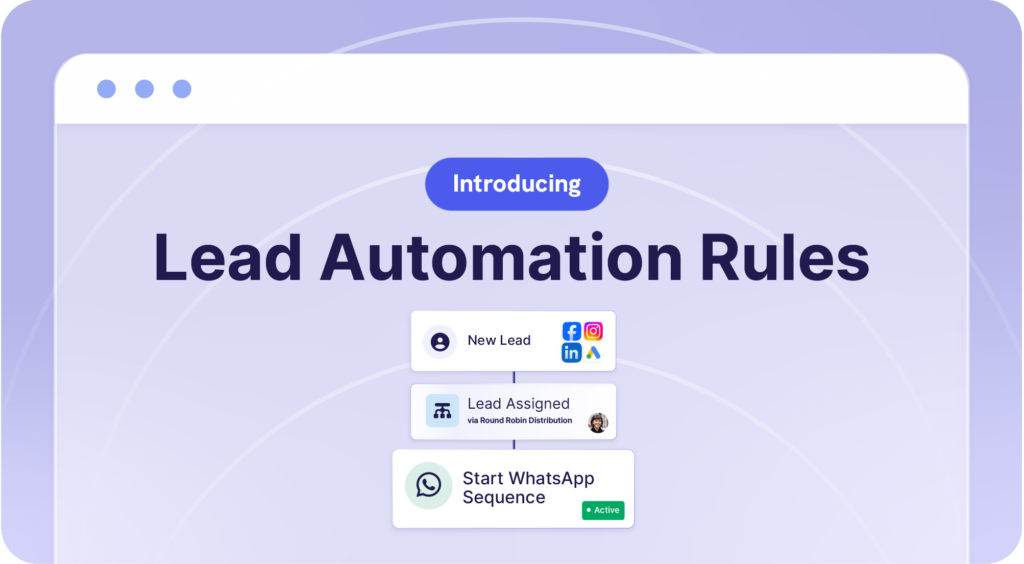
We just launched our brand new Lead Automation Rules – which will completely change how you handle new leads.
Think fully automated follow-ups, triggered by lead-specific rules, sent from your WhatsApp Business number. 🤯
Now you can automatically assign and add new leads to WhatsApp Sequences — based on any criteria you set.
Create multiple rules and sequences to handle leads from different campaigns or products of interest.
Privyr instantly messages new leads and follows up for you 24/7, until the lead is ready to talk or buy.


How it works
🤖 Automatic WhatsApp Follow-Ups & Lead Assignment
New leads can now be instantly assigned to your team AND enrolled into a WhatsApp Sequence, based on the specific lead automation rule they match.
⚡ Set multiple rules to trigger different automations
Your rules can trigger different WhatsApp Sequences based on the lead’s details like their source, location, budget, product interest, and many more.
This ensures that if a lead meets specific criteria, they’ll start the correct sequence. For example:
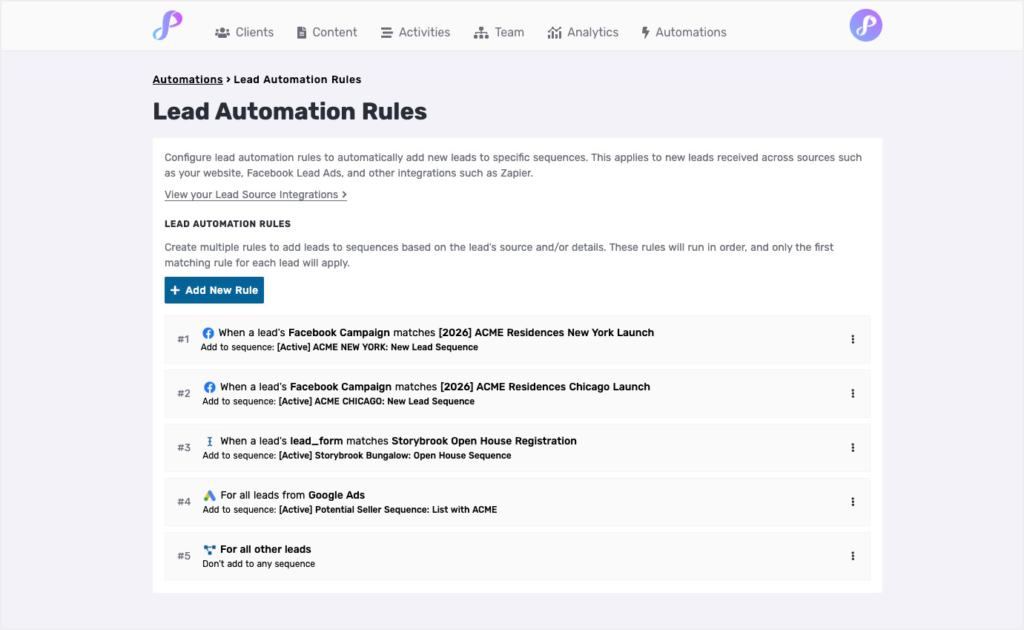
- Leads coming from your “ACME Residences New York” Facebook Campaign get the New York sequence, while those from “ACME Residences Chicago” campaign get the Chicago sequence.
- Leads who fill out your Open House Google Form are automatically assigned to a team member and added to your Open House WhatsApp Sequence.

👀 Full control & visibility over the chat
You can view all the messages from your regular WhatsApp Business app and take over the conversation anytime.
The automatic follow-ups can be set to pause when you manually message a lead or receive a reply. This ensures you don’t over-message someone who’s actively chatting with you.
The follow-up system you can set and forget ⚡
By using Lead Automation Rules, you never have to worry about missing leads or delaying follow-ups again.
Even while you’re busy or offline, Privyr is working in the background – automatically engaging every new lead that comes in from:
- Your Facebook, Google, TikTok, or LinkedIn Ads
- Your website or contact forms
- Any other lead source
Getting Started
To set up your Lead Automation Rules:
- Go to your Automations tab > Lead Automation Rules
- Click Add New Rule and set your criteria
- Once added, you can edit, reorder, or remove rules anytime
If you’re using the mobile app, go to Account tab > Lead Automation Rules to set this up.