Last updated: 20 April, 2026
Wondering what’s suddenly tanking your campaign performance? This new setting might be the culprit! ⚠️
Have you been recently experiencing a dip in the performance of your Meta Ads even when you haven’t made any changes to your targeting, budget and creatives? It may be worth reviewing a newer feature in your Meta Ads Manager called “Related Media”.
Relative Media is a creative tool from Meta designed to help advertisers display their media in various ways to better connect with different audiences. However, depending on your campaign goals and creative strategy, it could also result in older or less-relevant visuals being displayed alongside your current ad.
According to many advertisers, this new Meta feature has altered their ad creatives, sometimes in a negative way. This post will touch on what Related Media is, what it does, and how to disable it if needed.
What is “Related Media” and what does it do
In Meta Ads Manager, the Related Media setting is an option that allows Meta to suggest and automatically include images or videos you’ve used in past ads when you create a new ad. When enabled, this will allow Meta to include a wider selection of your media assets, such as older images or videos that the system finds related, to your ad.
The Related Media setting can be helpful for advertisers looking to automatically test creative variations and are meant to be relevant to your current ad’s goals and creative.
However, if you’re running tightly controlled campaigns, especially for lead generation or direct response, you’d certainly want to review which assets are being included to ensure consistency with your brand and message.
More importantly, this feature is turned on by default. If you want better control over your ad assets, you should look for it and turn it off.
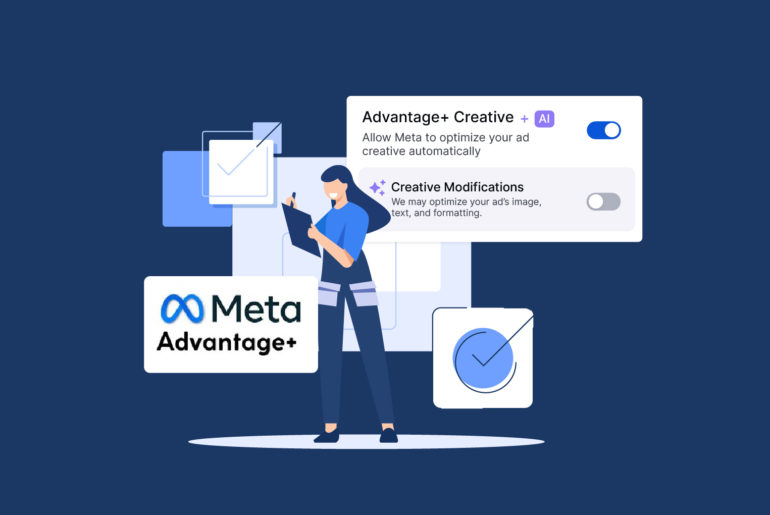
With Meta introducing more advanced automation in its ad system, “Related Media” is now more tightly integrated with AI-powered creative features like Advantage+ and flexible ad formats. As of 2026, you now have:
- More control over reviewing suggested media before publishing
- Improved preview options inside Ads Manager, and
- Better reporting through creative breakdowns
Related Media is now a part of Meta’s broader push toward automated creative optimisation.
How to review, turn off, or remove Related Media from Facebook Ads
- Go to Ads Manager and open any ad.
- Click “Edit” to view its settings.
- Scroll past your main creative — you’ll find a section labelled “Related Media.”
- Click “Edit” to review what’s included.
- Deselect or remove any media that may not align with your current campaign.
- Repeat this for other active ads as needed.

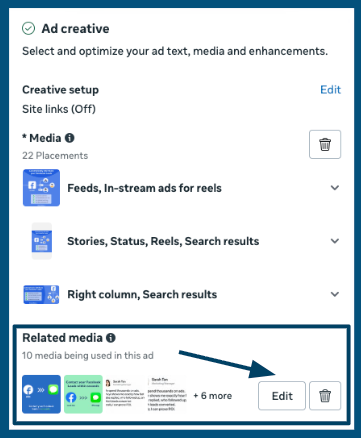
This gives you full control over which media appears with each ad. This ensures your campaigns only use assets you’ve intentionally approved.
You can also preview and review suggestions before publishing your ad. Meta now allows you to review and adjust automatically suggested media before your ad goes live.
Before publishing:
- Check the Ad Preview panel
- Review all suggested images/videos
- Manually remove any irrelevant creatives
Why this step matters
When ads show different creatives than expected, albeit with a tiny difference, it can alter the message, tone, or visual consistency your audience experiences. This can hurt ad conversions.
By reviewing the Related Media section, advertisers can make sure their ads always represent their latest branding, offers, and communication style.
How to tell if related media is behind the performance drop in your Meta Ads
Disabling or enabling Related Media shouldn’t be guesswork, you can actually measure its impact. Here’s how you can analyse performance and decide for yourself:
- Go to Ads Manager
- Click Breakdown
- Select By Creative > Related Media
This will show you which creatives were auto-added, how they performed vs your original ad, and metrics like CTR, conversions, and cost per result.
If auto-added media performs worse, it’s a strong signal to disable Related Media. However, if it improves performance, you may want to keep it enabled for scaling campaigns.
Here are other ways to confirm if Related Media may be causing a sudden performance dip in your Meta ads:
1. Check if unexpected creatives have started appearing
Go to Ads Manager > Ad Level > Edit > Media.
If Related Media is on, Meta may have already started using your creative assets. Now, check if the media you didn’t select is appearing in your active ads and Thumbnail previews. Also inspect creative history to see if it shows new variations you didn’t approve.
2. Compare performance before and after the date Related Media was enabled
Inspection factors like CTR decline, CPC increase, Conversion rate drop, Lead cost rise. If your dip begins exactly when the feature started using other creatives, that’s strong evidence.
Tip: You can see when an ad was edited (including enabling/disabling features) via Ad > Edit History.
3. Review comments, engagement, or quality feedback
You’ll start seeing irrelevant comments and lower engagement quality if Meta selects an off-brand or outdated creative. These signals often correlate with lower ad relevance and degraded performance.
4. Turn off Related Media for 3–5 days
If performance recovers after disabling it, congratulations. You’ve confirmed that Relative Media was the primary reason behind your disappointing Meta Ads performance.
Quick Rule of Thumb
If you see new creative variations along with learning phase reset and a sudden performance drop, there’s a high chance Related Media was the cause.
How to keep lead quality high with real-time engagement
Now that you’ve fixed your ad’s performance issue, the next crucial step is how fast you respond to leads.
Leads interact with different ads all the time. The real difference comes from how quickly and personally you engage with each new inquiry. Businesses that reach out to leads fast immediately increase their chances of converting them since almost all prospects are more likely to respond to fast outreach compared to late ones.
This where Privyr can help.
As a Meta-integrated CRM and lead engagement system, Privyr connects directly to your Facebook and Instagram Lead Ads, automatically sending new leads to your phone. You can follow-up instantly using WhatsApp or your preferred way of contacting leads, such as iMessage, SMS, Email, or Call.
With Privyr, you can:
- Receive or distribute new Meta leads instantly via push notification, WhatsApp, or email
- Auto-personalize templated responses in one tap, or hands-free
- Track and follow up with every lead from one place
- See which campaigns and creatives are driving real conversions
- Optimise Facebook Lead Ads further using Meta’s Conversions API
So even if your ad settings or creative behavior change, your response time and conversion consistency stay strong.
Final Tip
Many things can influence the performance of your ads. But the first thing you want to do when you noticed any unexpected performance shifts in your Meta Ads is to review your Related Media setting.
It’s a quick check that helps ensure your audience always sees your most relevant and up-to-date creatives.
Optimising your ads is only half the battle. Your next challenge is conversion. To ensure this step goes smoothly and you make the most of every lead, you need a supporting system that handles your repetitive and error-prone tasks, allowing you to focus on converting leads.
To make sure no lead slips through the cracks, Connect Privyr to your Meta Lead Ads within seconds, and turn every new lead into a real conversation, instantly.
Meta uses automation to improve performance by adding relevant creatives from your account or page.
You can disable it at the ad level, but Meta may still suggest media during setup. Therefore, always review before publishing.
It depends. In some cases, it may increase engagement, but it can also reduce your control over branding.
No. Dynamic Creative mixes your uploaded assets, while Related Media adds new ones automatically.