Updated on 3 March, 2026
Struggling to find Ads Manager on Facebook while trying to promote your business? Let us help you locate it effortlessly!
The Ads Manager is the tool you’ll use for all your paid advertising efforts on Facebook. It’s where you’ll strategise, launch, and monitor the performance of your ads. Additionally, Ads Manager is where you download and manage the leads generated through Facebook Lead Ads.
But if you’re new to this, navigating the Facebook Ads Manager can be a bit challenging. But don’t worry, we’re here to assist you!

In this article, we’ll explain how to access Ads Manager and kick-off your very first paid promotion on Facebook.
So, where is the Ads Manager on Facebook?
Facebook Ads Manager can be commonly accessed by typing its address adsmanager.facebook.com (or facebook.com/adsmanager) onto your web browser on desktop. You have to ensure you’re logged in with the right profile.
Ads Manager can also be accessed through your Facebook profile, Meta Business Suite, and its app for mobile devices. Here are a few different ways to access Facebook Ads Manager depending on your device:
How to access Ads Manager on Desktop
- Ads Manager website: You can access Ads Manager directly by typing adsmanager.facebook.com into your web browser on your desktop. This URL will take you straight to the Ads Manager interface.

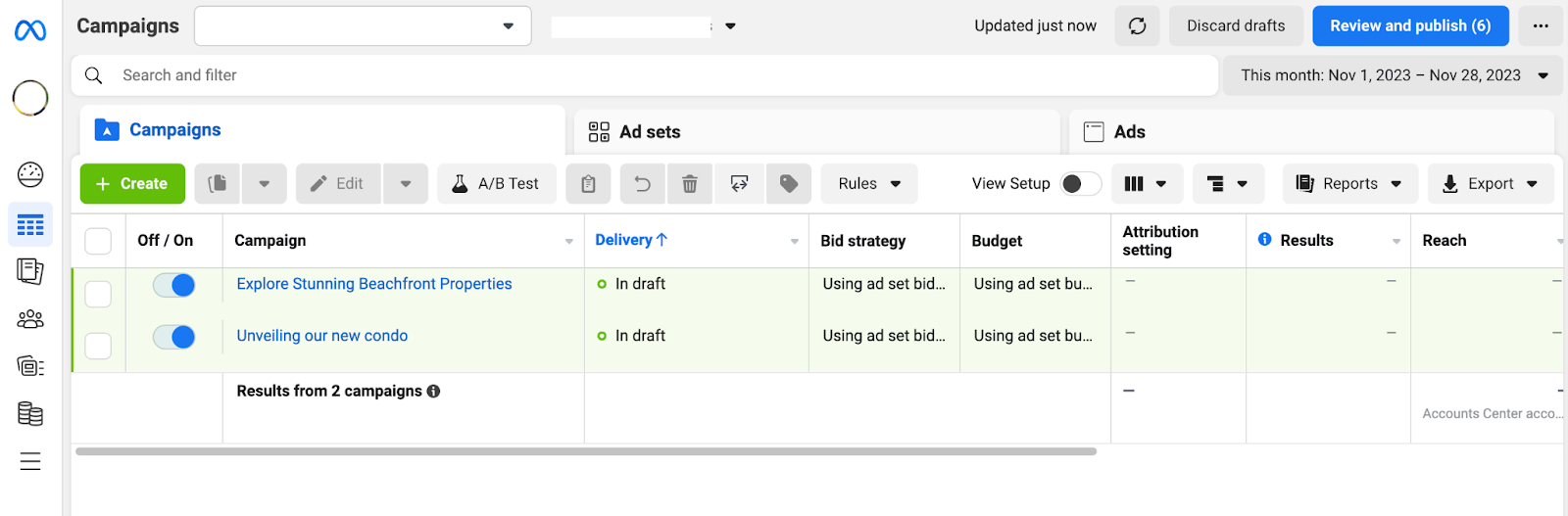
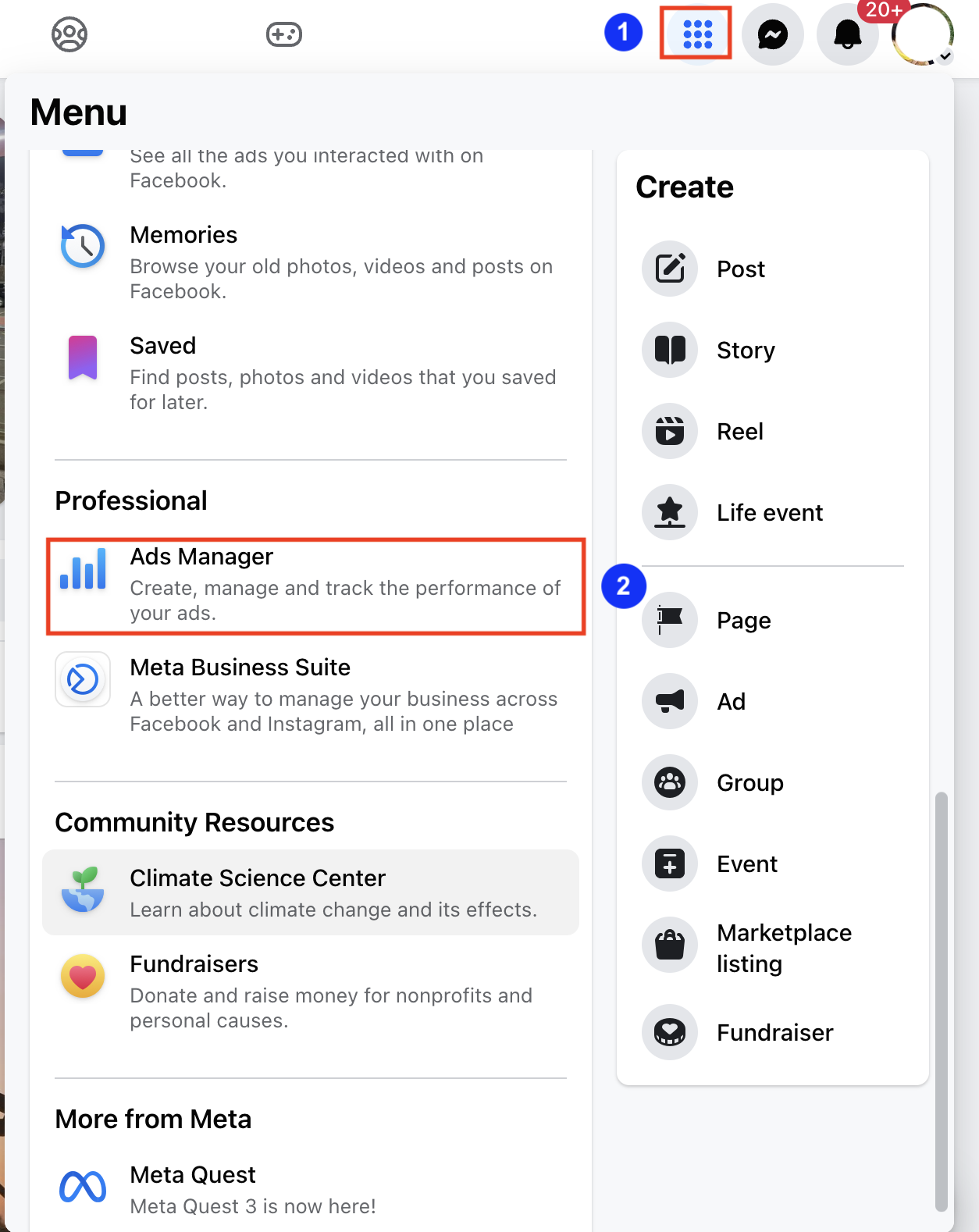
- Through your Facebook profile: Log into your Facebook account and click on the menu button in the top-right corner of your Facebook page. This will open a drop-down menu. Find Ads Manager under the Professional section. Click on it and it will take you to the Ads Manager interface. Don’t confuse Ads Manager from the menu with Ads under the Create section as the latter will instead initiate the process of creating a new Ad.

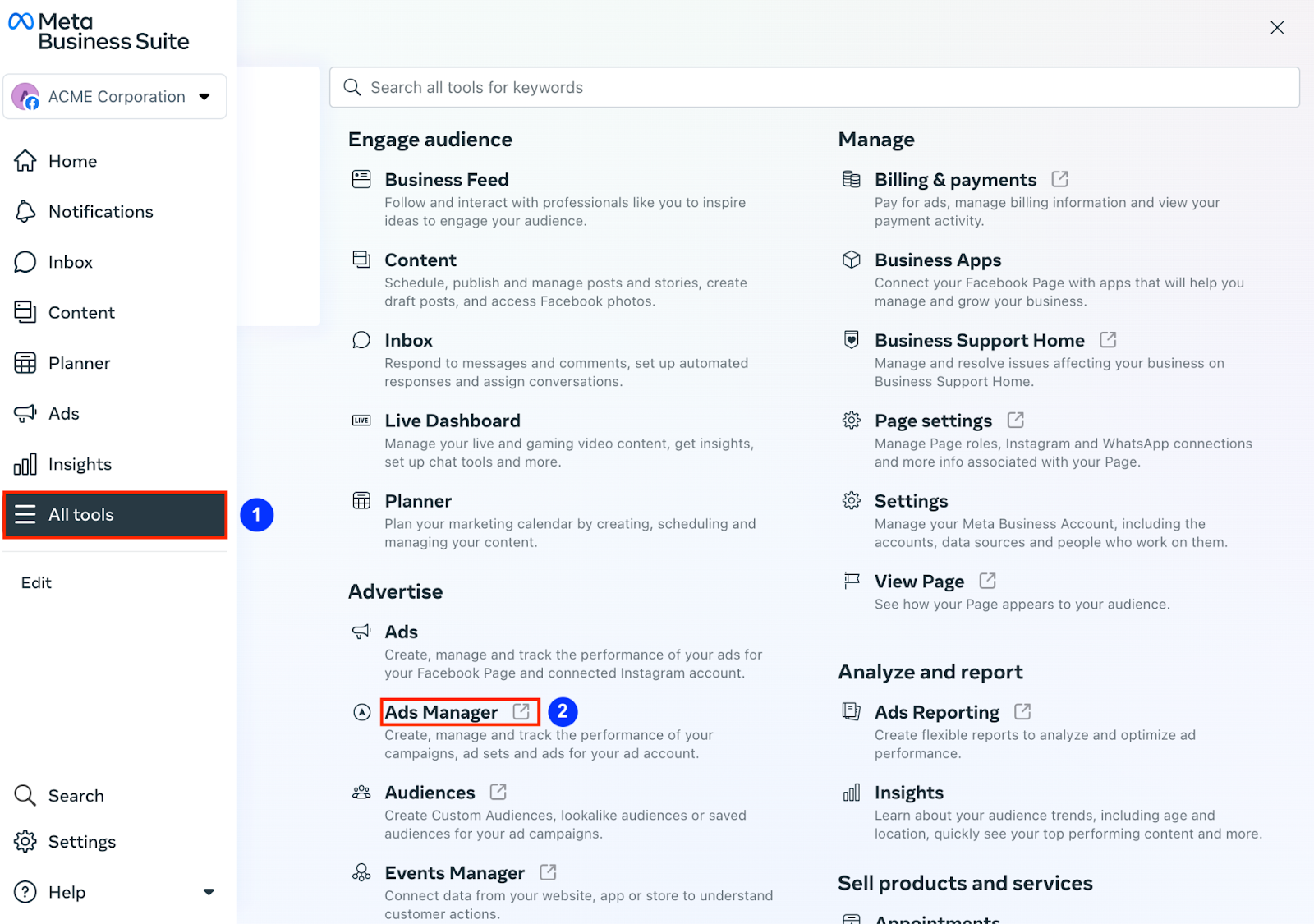
- Through Meta Business Suite: You can also access Ads Manager through Meta Business Suite. Log into your Business Suite (enter business.facebook.com on your browser) and access Ads Manager from the All Tools menu.

How to access Ads Manager on Mobile
To access ads manager on your mobile, you’ll have to switch to the desktop site on your mobile browser and access the Ads Manager. Normally, mobile browsers don’t support the complex design and functionalities of Ads manager.
Here’s how to switch to desktop site to access ads manager on your mobile browser:
Android (Chrome)
- If you want to switch to desktop temporarily, tap the three-dot menu, then check the box next to “Desktop site“.
- If you want a desktop browser permanently on your phone, go to Settings > Site settings > Desktop site, and turn the toggle on.
iOS (Safari)
- Tap the “aA” icon in the address bar. Then tap the three dot button on the bottom left and toggle on the “Request Desktop Website” option.
Other Browsers
- Opera: Tap the profile icon > Settings > Appearance > Desktop site.
If a site doesn’t switch, reducing your browser zoom in settings can sometimes force the desktop version to load.
Keep in mind that this is not a user-friendly way to access Ads Manager. Because ads manager’s complexity in design and functionalities aren’t suitable for smaller screens. Here are alternative ways to find Facebook Ads Manager on mobile.
- Through Facebook Ads Manager app: Facebook offers Ads Manager app for mobile device. Download the app from the App Store (iOS) or Google Play Store (Android) so you can create, manage, and track the performance of your ads on-the-go.
- Through Facebook App: Tap the menu icon (three horizontal lines) to open the menu on your Facebook mobile app and look for “Ads Manager”. This may vary depending on the app’s version and your account type.
If you run ads frequently, bookmark the Ads Manager URL in your web browser so you can quickly navigate to Ads Manager without going through the Facebook homepage.
Facebook Ads Manager login
For Facebook Ads Manager login, you need to be signed into the correct Facebook account that has access to an active ad account. You do not need to create a separate account for Ads Manager. Once you’re logged in to the correct profile, Ads Manager lets you create campaigns, set budgets, target audiences, track performance, and manage billing from its dashboard. If you can’t find Ads Manager after logging in, it’s often due to being on the wrong profile, missing permissions, account restrictions, or using the mobile app instead of a desktop browser. For full access, log in via a desktop browser at facebook.com/adsmanager using the account that owns or is assigned to the ad account.
Why can’t I see Ads manager on Facebook
If you’re unable to see the Ads Manager on Facebook, there are a few common reasons why:
1. Wrong account or profile

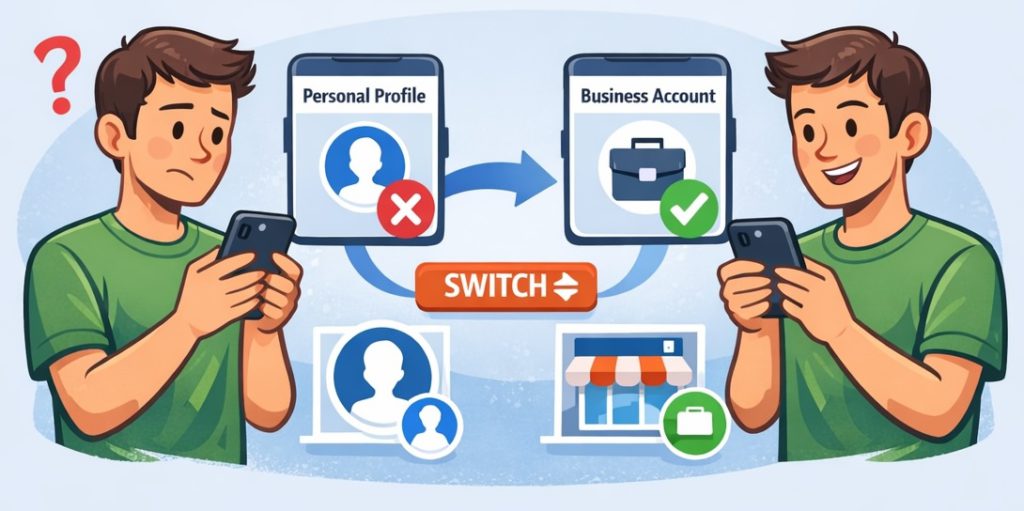
You may be logged into your personal profile instead of the business account connected to Ads Manager. This confusion can occur if you have multiple profiles or business pages.
Make sure to check your profile or business page you’re logged in and switch to the right one.
2. No advertising permissions

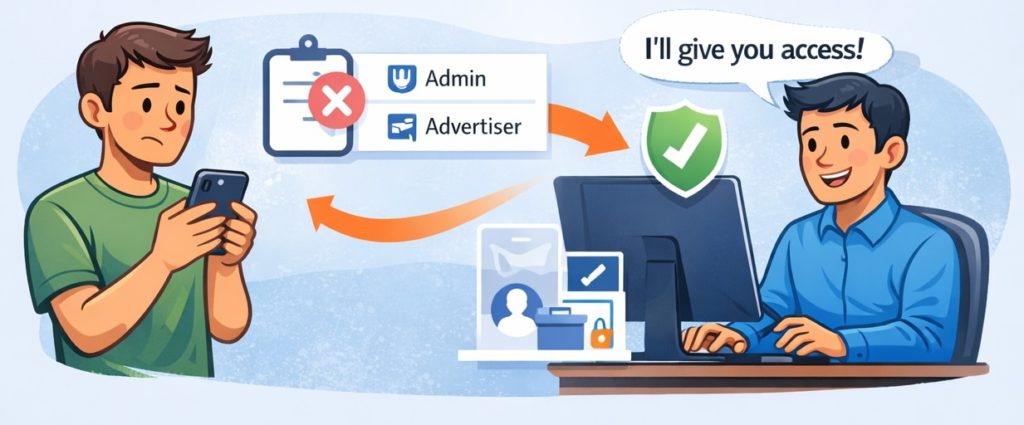
If you’re part of a Business Manager, you need the right permissions to access Ads Manager. It’s usually admin or advertiser permissions.
Ask the business account owner to grant you access.
3. Ads Manager not created yet


Your Facebook Page doesn’t automatically give you Ads Manager access. You may need to create one
If you’re yet to run your first ad, visit https://business.facebook.com/adsmanager to view or create your Ads Manager
4. Using the wrong interface
Ads Manager shows up differently on different devices. On desktop, it’s under All tools → Advertising inside your Business Suite.
On mobile, you may not find it directly on Facebook but as the Meta Ads Manager app.
5. Country or account restrictions

Facebook can hide or disable if your account has been flagged for policy violations. Additionally, some features roll out differently depending on regions.
Check if your account has been flagged and update your app.
6. Technical glitches

Technical failures, incomplete installations or updates, and other technical factors can sometimes limit your access to the Ads Manager. Try clearing your browser cache or open the app on a different browser to check if this
On mobile, update or reinstall the Meta Business Suite or Meta Ads Manager app.👉 Quick check: Try opening this link directly — https://www.facebook.com/adsmanager. If it loads, the tool is active; if not, you’ll likely see an error that points to the issue.
How to run your first ad campaign on Ads Manager
Running an ad campaign is pretty straightforward on Ads Manager. All you have to do is click the + Create button, select what kind of campaign you want to run, add your materials as instructed, and publish your ad.
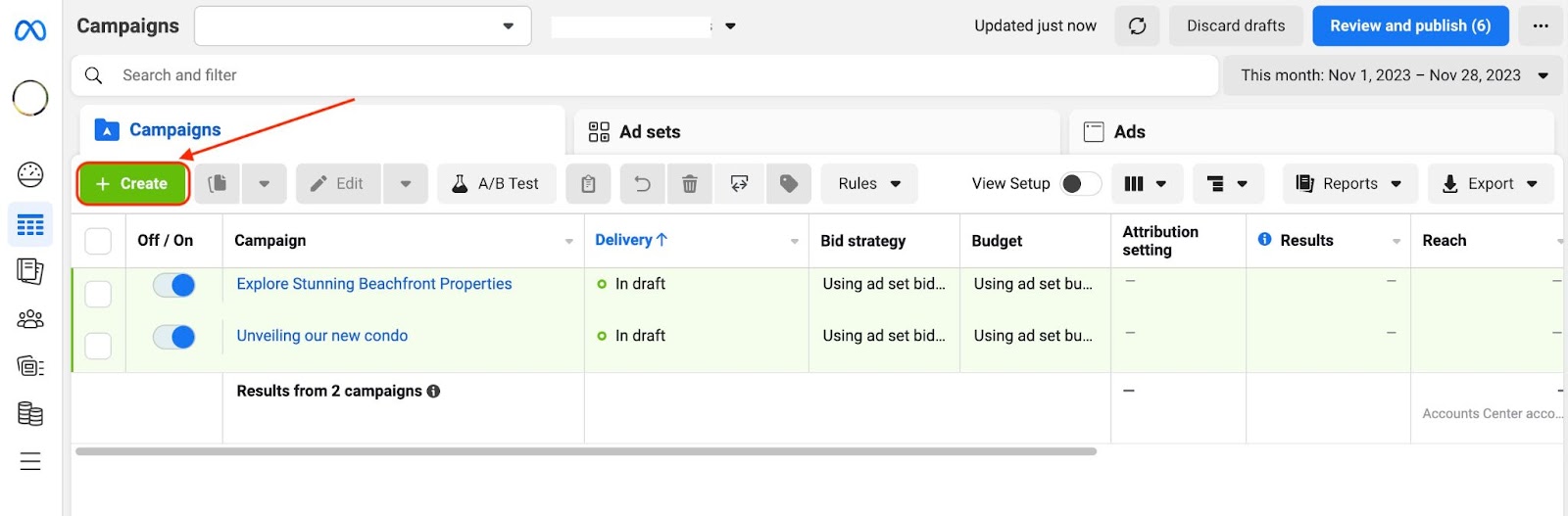
The Ads Manager will guide you through the process to seamlessly run your ad.
However, it’s highly recommended to be well aware of a few elements in advance before publishing your ad. First, you should be clear about the objective of your ad as in what you want to achieve with it. Facebook Ads Manager provides a range of campaign objectives for different advertising goals. Here’s a breakdown of each option:

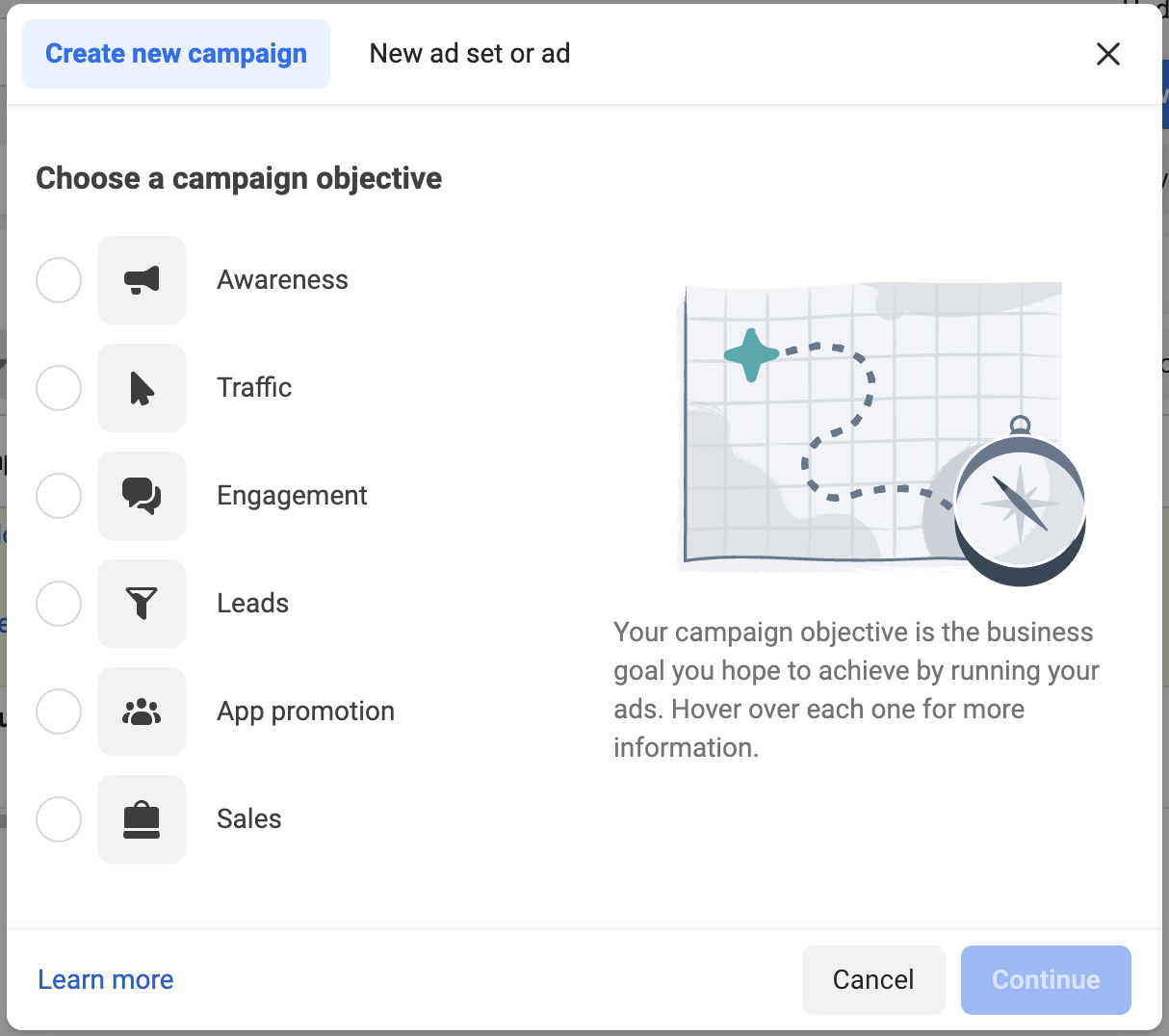
- Awareness: The objective of Awareness is to generate interest in your product or service. It’s a great option if you wish to increase the reach of your brand.
- Traffic: This option is all about driving people to a destination, such as your website, app, or Facebook Messenger conversation.
- Engagement: Engagement aims to increase people’s interactions with your content using social media advertising tools. This could be post engagements, page likes, event responses, or offer claims.
- Leads: Lead generation is about collecting information from interested prospects. The goal is to gather leads for your business, like email sign-ups or contact details, so you can reach out to them later to make a sale. Ads Manager provides pre-populated forms for Lead Ads to make it easy for users to submit their information without leaving Facebook.
- App Promotion: This objective focuses on getting people to download or engage with your mobile app.
- Sales: Sales is all about driving sales of your products or services, either online, in-app, or in a physical store. If you’re looking to make direct sales through ads, you could choose this option.
Paid campaigns cost money, so it’s best that you have a clear vision of your budget before beginning your campaign. Budget impacts the reach and effectiveness of your paid promotion, so do some research and understand your target audience before running an ad.


What kind of Ads can you run on via Ads Manager?
Facebook Ads Manager offers a wide range of ad types to meet different marketing objectives. Here’s an overview of the primary ads types you can create and publish via Ads Manager:
- Image Ads: These ads consist of a single image and can be used for various objectives like brand awareness, lead generation, or driving traffic to your website. You can add copy and a call-to-action button on your images.
- Video Ads: Video ads feature a video and can be used for storytelling, showcasing products or services, or explaining concepts. They can be highly engaging if produced correctly. As an advertiser, you can run video ads in Facebook Feeds, Stories, or In-Stream Videos on Facebook.
- Carousel Ads: With carousel ads, you can showcase up to 10 images or videos within a single ad, each with its own link. This format can be great for highlighting different products in a single ad.
- Slideshow Ads: Slideshow ads create a video-like experience with motion, sound, and text from a series of still images. They are lightweight and easy to create. They can be ideal for reaching audiences with slower internet connections and can also act as an alternative to video ads if you don’t have sufficient resources to create one.
- Collection Ads: These ads allow users to browse more products or learn more about a feature without leaving Facebook. A collection ad may include a cover image or video followed by several product images.
- Lead Ads: Designed to generate leads, Lead Ads include customisable forms and pre-populated forms that make it easy for users to sign up for what you’re offering, such as newsletters, price estimates, follow-up calls or texting ads, and business information.
- Messenger Ads: These ads appear in the Chats tab of the Facebook Messenger app and can be used to encourage people to start a conversation with your business. Messenger ads can be used for lead generation, customer service, or nurturing relationships.
- Stories Ads: These full-screen vertical ads appear between Stories on Facebook and Instagram. You can use an image or a video to run Stories Ads. They are ideally used for brand awareness.
Conclusion
Now that you’ve decided to launch your ad campaigns on Facebook, remember that locating the Ads Manager is the least of your worries. Running a successful campaign involves careful planning and execution. This means accurately identifying your target audience, setting an appropriate budget, and adhering to effective advertising practices to ensure strong conversion rates. Thorough research and preparation are essential before you start your campaign.
Frequently Asked Questions
You can find Facebook Ads Manager at facebook.com/adsmanager. If you’re logged in, the link takes you directly to your Ads Manager dashboard.
You can access Ads Manager in three ways: 1) Going directly to facebook.com/adsmanager 2) From Facebook, click your profile picture > Settings & privacy > Ads, and 3) From Meta Business Suite. Go to All tools > Ads Manager
You can find ad settings in Ads Manager. Go to Ads manager, select your campaign, ad set, or ad. Then edit settings. On Settings & privacy, go to Ads for ad preferences and account-level settings. For billing, ad accounts, permissions, and payment methods, go to Business Settings.
You don’t need to create an Ads Manager account separately. When you create your first Facebook ad, an Ads Manager account is automatically created for you. You can start using ads manager by visiting facebook.com/adsmanager and clicking Create an ad.
You can access Ads Manager on mobile in two different ways: 1) Through Meta Ads Manager app (iOS & Android), and 2) Through mobile browser. Visit facebook.com/adsmanager. Mobile browser comes with limited features.
To open your Facebook ads account, go to facebook.com/adsmanager, click Create an ad, choose your objective and set up billing details. Your ads account is automatically created during this process.